Our app can be integrated easily with custom platforms like Zapier or Make (Formerly known as Integromat)
You can use an integration URL for form processing, or for sales funnel sales notifications. Basically, data will be sent to the integrated applicaiton when the form is submitted, or when a sell is made of teh specific product you are adding the integration to.
To get the custom URL you have to use is easy...
Zapier
Log in to Zapier
Click on "+ Create zap" in the top left corner
in teh search field enter "Webhooks by Zapier" and select it
For "Event" select "Catch Hook"
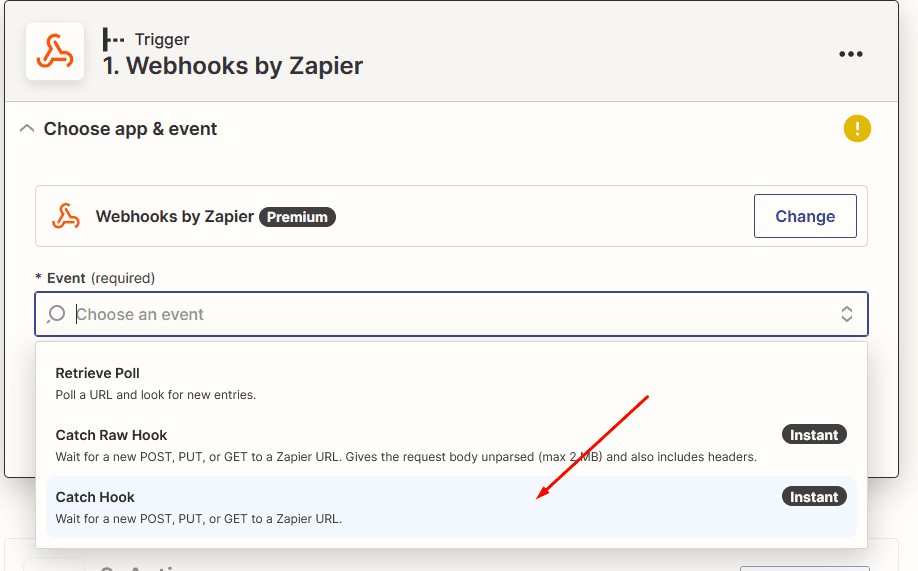
Click on "Continue"
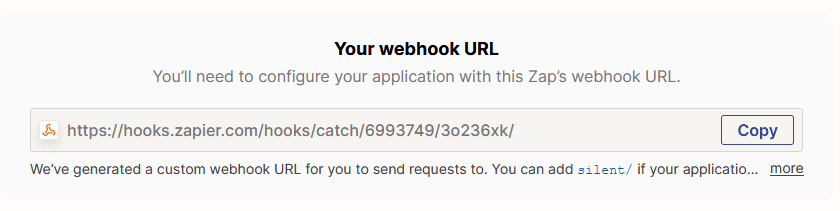
Click on "Test trigger" in the accordion menu
You will see your "Webhook URL" that you need to add to our app
Make (Integromat)
Log in to your Make avvount
Click "Create new scenario" in top right corner
Click on "+" and enter "Custom webhook" in the search field
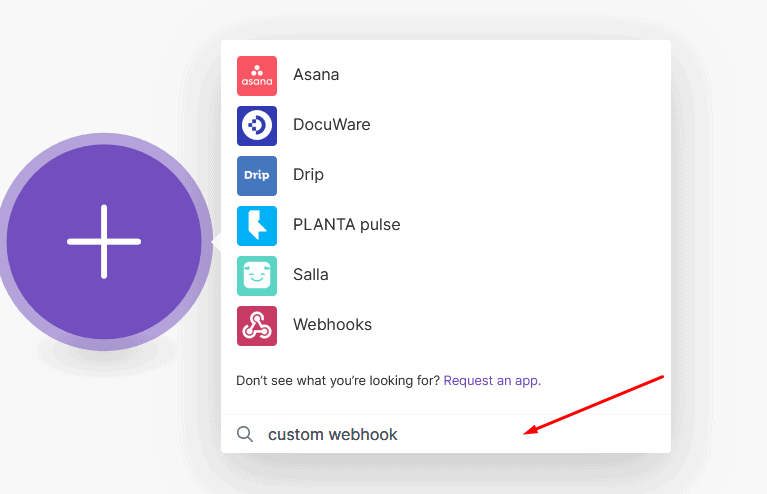
Click on "Webhooks", then click on "Custom webhook"
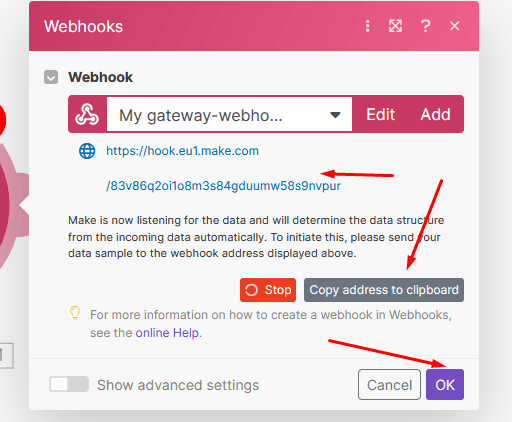
Click on "Add" in the appearing window
Click on "Save"
Your webhook URL, will be displayed and you can copy it right away, afer that click on "OK"
Now you have either a zapier or a Make webhook URL that can receive and process data from our app. To add it to our app follow these steps:
Custom form integration:
Create a form in the editor with as many fields as you need
Make sure that you have a custom and unique name for your form fields
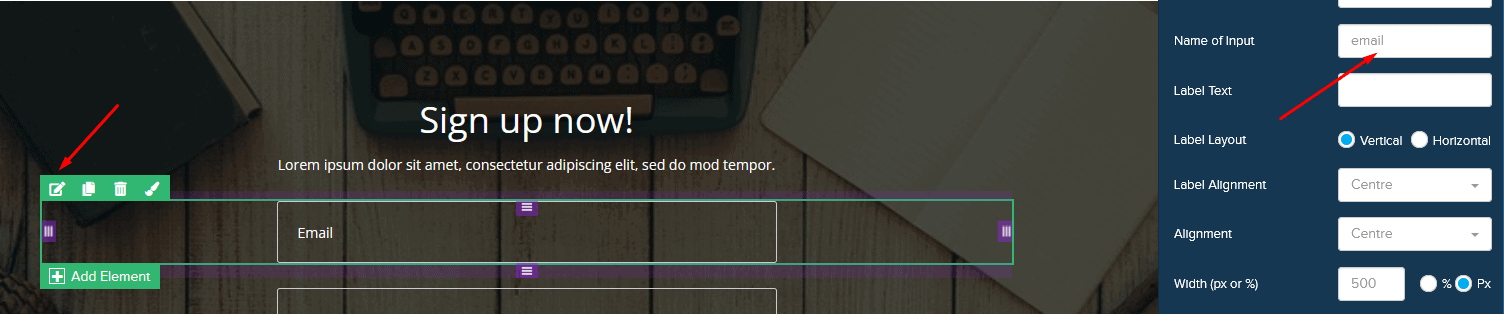
Add a form submit button and click on edit
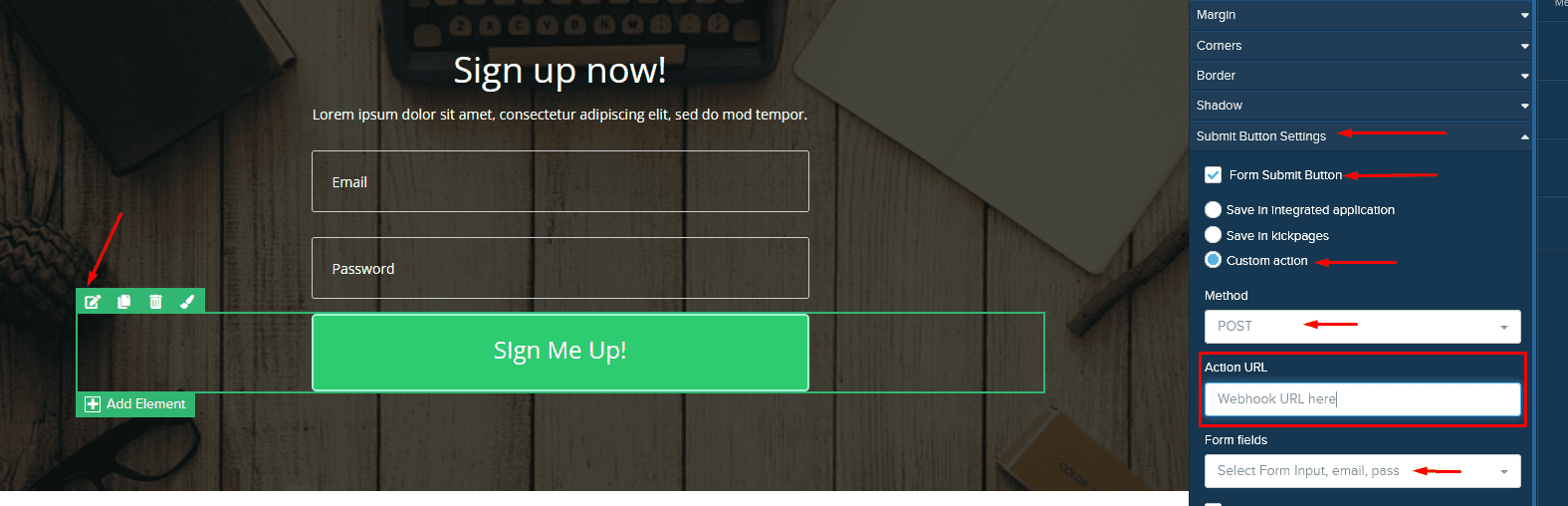
Click "Submit button settings"
Check "Form Submit Button"
Check "Custom action"
In the "Action URL" field enter your webhook URL from Zapier or Make
Select the unique input field names you have set earlier. (Only selected input field values will be sent out to your integration)
Sales funnel integration:
Create your sales funnel
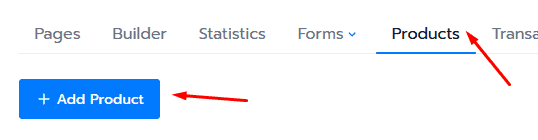
In your sales funnel setup click on "Products" then on "Add Product"
Fill in your product details that you will sell in your funnel
In the "Webhook URL" field enter your Zapier or Make webhook URL
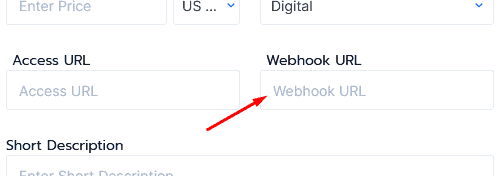
Please note, that you have to add the webhook URL to every product separately, and they will send out the data separately each time a sale happens
With the data posted to Zapier or Make you can continue your Zap or Scenarion further to process the data as you would like. You can send it to secondary integrations, process it there and save them to aspreadsheet for example.
If you have any issues setting up your integration then please contact us and we will help.