You can easily add Stripe to handle card payment in your funnels in our app.
First, you'll need some information from Stripe - your API key and your Secret key
Accessing the Stripe Dashboard
Log In to Your Account
Visit dashboard.stripe.com/login.
Enter your email and password.
Click "Log in".
Obtaining API Keys
Stripe provides two types of API keys:
Publishable Key: Used in your application's frontend; it's safe to expose this key.
Secret Key: Used in your application's backend; keep this key confidential.
Publishable Key
Navigate to API Keys
You can go to the API Keys section by clicking here: https://dashboard.stripe.com/apikeys
View Your Publishable Key
You will see a section labeled "Standard keys".
The "Publishable key" is visible and starts with pk_test_ for test mode or pk_live_ for live mode.
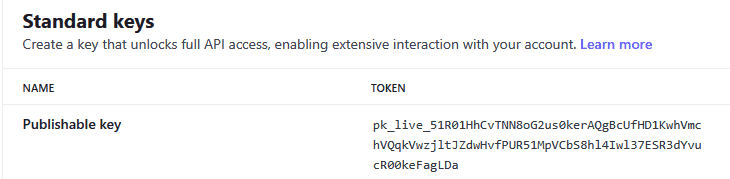
Copy the Publishable Key
Click on the key to automatically copy it to your clipboard.
Add the key to our app
Secret Key
Create a Secret Key
Click on "Create secret key" in the "Standard keys" section

Select "Building your own integration"
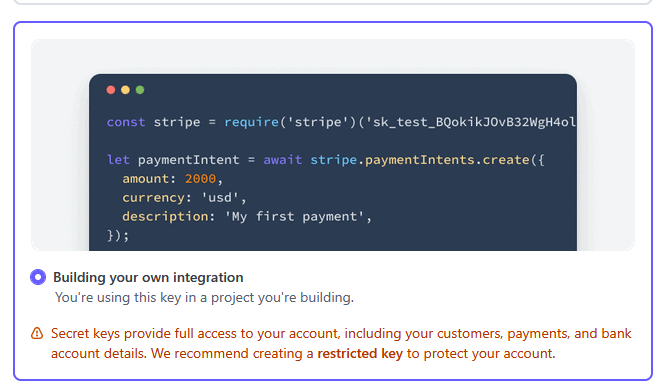
Enter a desired key name (if asked before name entry, verify your email and two factor authentication if it is turned on)
Click on the key to automatically copy it to your clipboard.
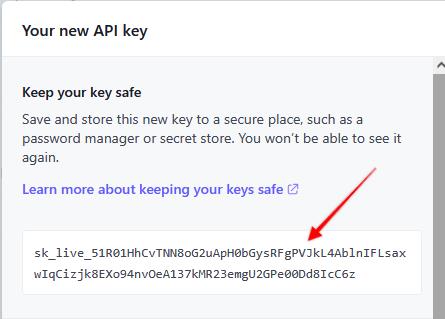
Add the Secret key to our app
Using the API keys
Log into your account and click "Manage" then click "Integrations".
Click "Stripe" and enter a name for your integration in the "Integration Name" field.
Paste the API key you copied from "Publishable Key" into the "Stripe Publisher Key" field.
Paste the Secret key you copied from "Secret key" into the "Stripe Secret Key" field.
Add the "Statement Descriptor" text which will be displayed on the credit card statement
Click "Connect".
Click on the small Pencil icon to edit the newly added integration:

Go to Stripe Developers at https://dashboard.stripe.com/developers
Click the "Webhooks" tab
Click on "Add destination"
Select "Your account"
Select 2025-02-24.acacia as the API version
Select the following events:
invoice.payment_succeeded (Under Invoice category)
invoice.payment_failed (Under Invoice category)
charge.refunded (Under Charge category)
customer.subscription.trial_will_end (Under Customer category)
customer.subscription.updated (Under Customer category)
To locate the events listed above, drop down the categories listed by the events and select the specified event, or you can use the search field to find and select the events
Click on Continue
Select "Webhook enpoint" and click on Continue
Enter the URL provided in the integration edit screen inside our app into the "Endpoint URL" field in Stripe developer settings
Click on "Create destination"
Stripe is now integrated and can be used to accept payment in the "Payment" tab inside your funnels.