This tutorial will guide you through linking your navigation menu items to different pages within your project. You’ll learn how to connect internal pages, external URLs, and even sections within the same page.
Step 1: Open the Page Editor
Go to your main project dashboard.
Open the project that contains your pages (e.g., Home and Features).
Select the page you want to edit — for example, Home.
Click Edit to enter the page editor.
Step 2: Access the Navigation Menu
Select a template that includes a preset navigation menu if you haven’t already.
Hover over the navigation menu area and click the Edit option from the green menu toolbar.
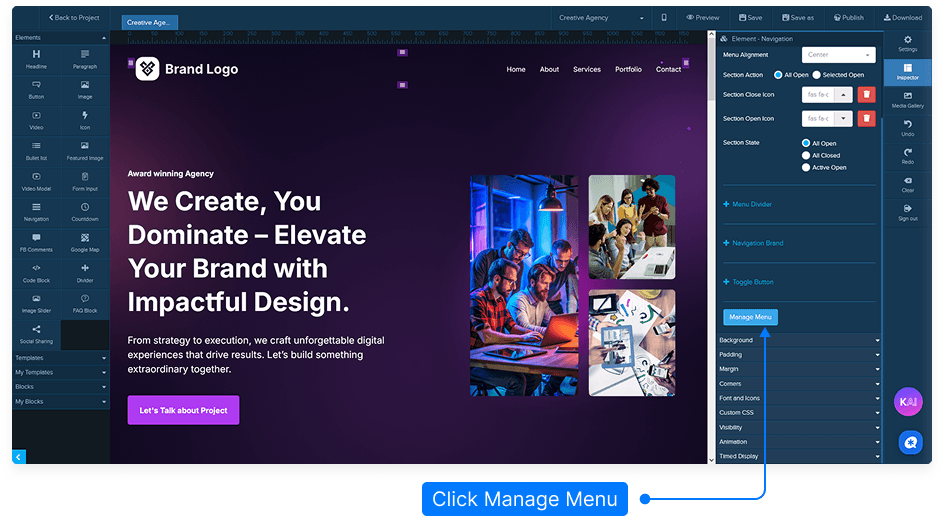
Step 3: Customize the Menu Text and Links
Scroll down to the Menu Text section in the settings panel.
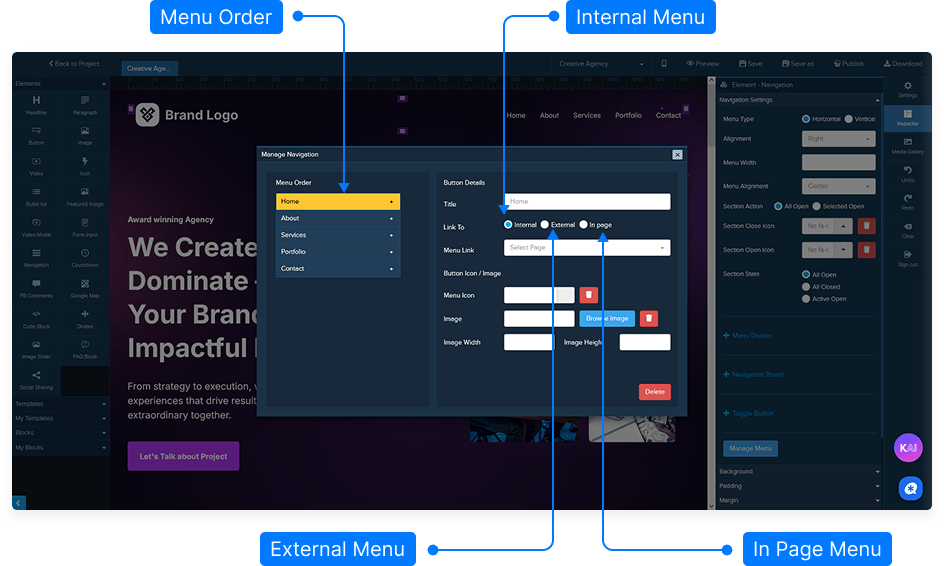
Each menu item (e.g., “Home,” “Features”) can be renamed or linked to a specific destination.
In Page: Link to a specific section on the same page. For example, selecting “Services” will scroll directly to that section when clicked.
External: Link to a page outside of your site using a full URL (e.g.,
https://example.com).Internal: Link to another page within your project.
Choose Internal from the options.
Use the dropdown to select from published pages (only available for published pages).
Select the page you want to link to, such as “Home” or “Features.”
Step 4: Save and Republish
Once you’ve linked your menu items, click Save.
Republish your page to ensure the latest changes are live.
Step 5: Reuse the Navigation Section on Another Page
Hover over the dark blue menu and select Save Design Block.
Give the block a name and assign it to a category, then click Save.
Return to your project dashboard and open another page (e.g., Features).
Click Edit to open the editor.
Go to your Design Blocks and find the saved block under the category you created.
Drag and drop the block onto your page.
Step 6: Re-Link Menu Items on the New Page
Hover over the menu and click Edit again.
Scroll to Menu Text 1 and select Internal → choose Home.
Scroll to Menu Text 2 and select Internal → choose Features.
Save and republish the page.
Step 7: Test Your Navigation Links
Open the published URL of your project.
Click on the Home menu item to verify it redirects to the Home page.
Click on the Features menu item to confirm it leads to the Features page.
Optional: Add More Menu Items
To add a new menu item, click Add More Menu.
Enter a name for the new item (e.g., “Contact”).
Once the new page is created and published, it will appear in the dropdown menu for linking.
That’s it! You’ve successfully linked your navigation menu to your internal pages, reused it across other pages, and ensured your visitors can navigate smoothly throughout your site.