This tutorial will guide you through the steps to add and customize a paragraph design block on your page.
Step 1: Add the Paragraph Element
Open the Elements menu from the left-hand panel.
Scroll down and select the Paragraph element.
Drag and drop it into your desired section or column until you see the yellow placement bar appear.
Step 2: Customize the Paragraph Text
Once the paragraph block is placed, you can begin editing directly inside the text window.
Text Formatting: Highlight your text and use the toolbar to:
Make text bold
Italicize text
Underline text
Apply
strikethrough
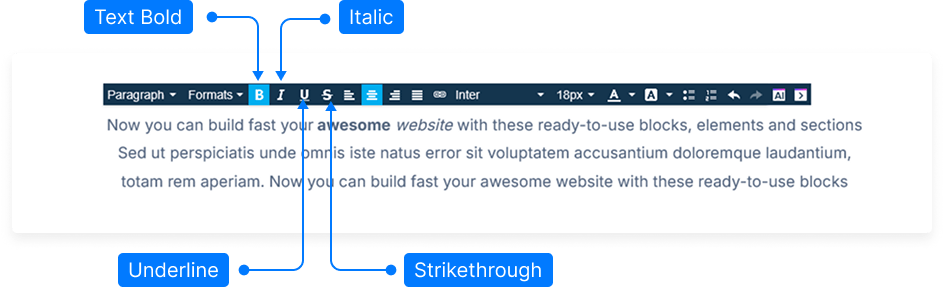
Text Alignment: Choose from left, center, right, or justified alignment options.
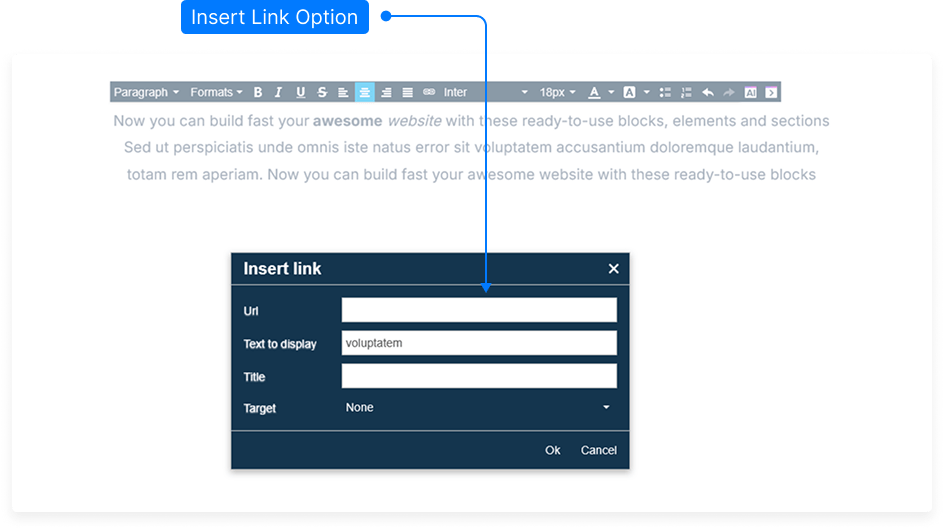
Insert a Link:
Highlight the text you want to link.
Click the Link icon.
Enter the target URL.
Select “Open in a new window” if you want the link to open in a new tab.
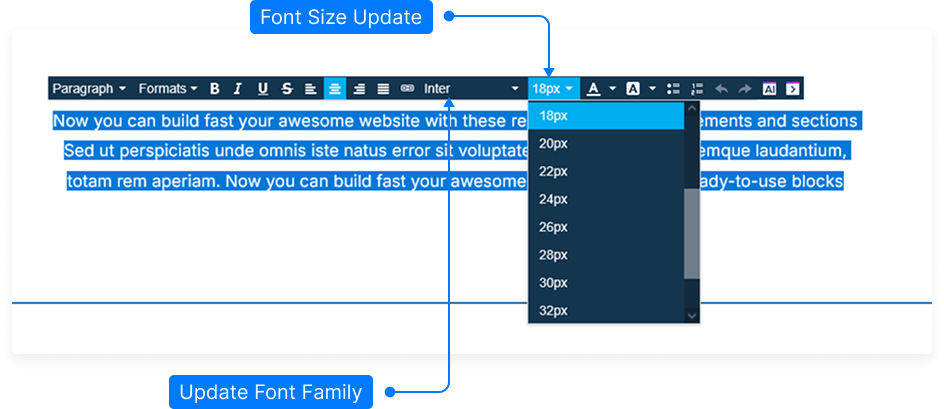
Font Options:
Choose your font family from the available options.
Adjust the font size to your preference.
Select a font color using the color picker.
Set a background color for the text if desired.
Lists: Convert text into a bulleted or numbered list for better structure.
Undo Option: If you make a change you don’t like, click Undo to revert your last action.
Step 3: Save Your Changes
When you’re satisfied with your paragraph design, click Save to apply your updates.
That’s it! You’ve successfully added and customized a paragraph design block.