This tutorial will show you how to add and customize a modal video on your page. A modal video is a video that pops up on top of the page when triggered by a button or image.
Step 1: Add a Modal Video Element
Open your page in the editor.
Choose where you want to place the modal video.
You can add it in one of two ways:
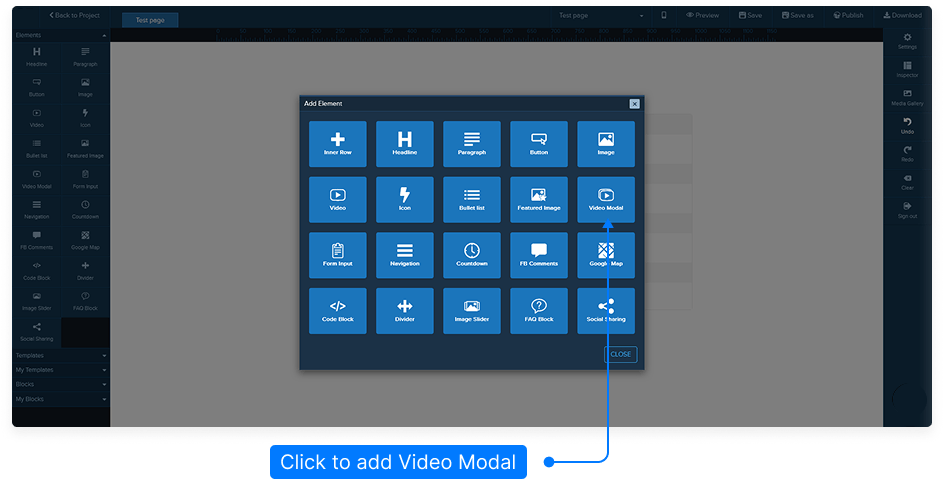
Drag and drop: Go to the Elements panel, select Modal Video, and drag it to the desired section until you see the yellow bar appear.
Add via button: Hover over the element where you want the video and click Add Element, then select Modal Video.
Step 2: Open the Inspector to Customize
Hover over the modal video element until the green menu appears.
Click Edit to open the inspector panel with all customization options.
Step 3: Choose the Video Source
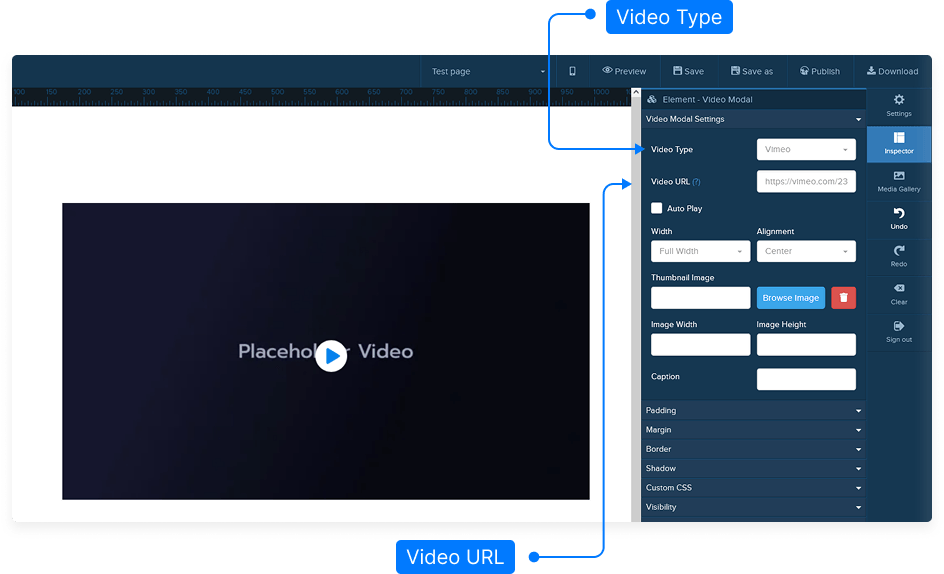
Under the Video Type dropdown, select one of the following options:
YouTube
Vimeo
Custom Embed Code – for third-party players or self-hosted videos
If you’re using YouTube or Vimeo:
Copy the video URL from your chosen platform.
Paste it into the Video URL field.
If using a custom embed code:
Paste the HTML embed code provided by your video hosting platform.
Step 4: Adjust Playback and Display Settings
Use the toggle options in the inspector to control how your video behaves and appears:
Autoplay: Start the video automatically when it opens.
Show Controls: Display play/pause and timeline controls.
Show Information: Display video title and details.
Show Branding: Show platform branding such as YouTube logo.
Show Suggested Videos: Show related content at the end of playback.
Step 5: Set Video Layout and Alignment
Adjust the width of the video as needed.
Choose alignment:
Left
Center
Right
Alignment depends on the available space within your row (the light blue box in the editor).
Step 6: Add a Thumbnail Image
Enable the option to display a thumbnail image.
Upload or select an image from your library.
Adjust image size or add a caption if desired.
Step 7: Customize Design and Spacing
Padding: Add spacing inside the modal video container.
Margin: Add spacing outside the container.
Border: Enable and customize the border width and color.
Shadow: Adjust horizontal and vertical shadow values, radius, and color for a more polished look.
Step 8: Apply Custom CSS (Optional)
If you want to apply additional styles, paste your custom CSS code into the Custom CSS field.
Step 9: Control Device Visibility
Choose whether your modal video should appear on:
Desktop only
Mobile only
Both
Step 10: Save and Preview
Click Save to save your page.
Preview your page to test the modal video.
Click on the thumbnail image to open the video popup, then click Play to ensure everything works properly.
And that’s it! You’ve successfully customized a modal video for your page.