Follow these steps to create or customize an FAQ block on your page:
Add or Select an FAQ Block
You can either:Use a preloaded FAQ block from a template.
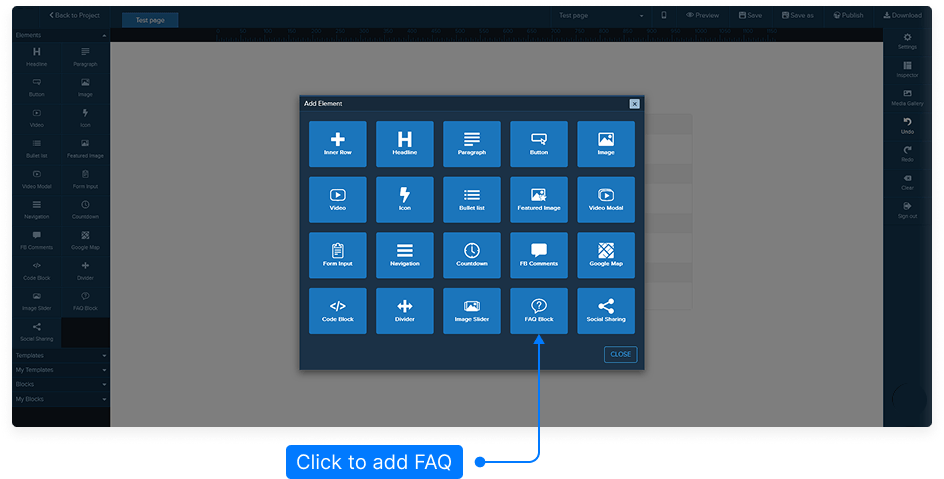
Or add a new one manually by going to the Elements panel, selecting the FAQ Block, and dragging it onto the yellow bar where you want it to appear.
Edit the FAQ Block
Hover over the FAQ block and click the Edit button on the green menu.
This will open the Inspector panel where you can configure content and design settings.Understand the FAQ Display Behavior
In the editor, all FAQ items appear open so you can easily edit the text.
However, when you preview or publish your page: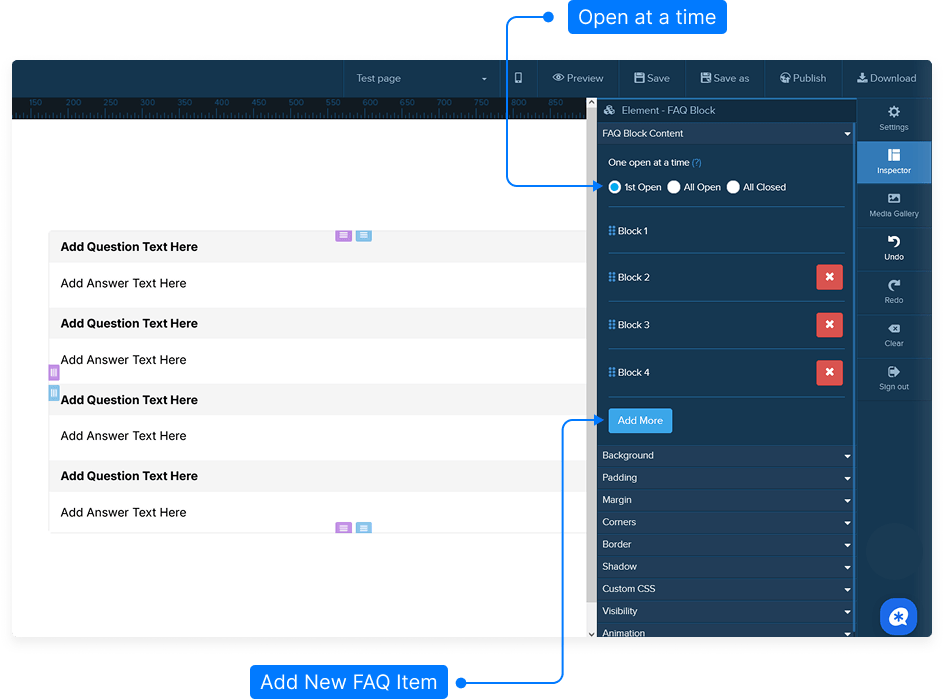
If set to First Open, only the first question will be open by default.
If set to All Open, all FAQs will be expanded.
If set to All Closed, all FAQs will be collapsed.
Edit FAQ Content
Click directly inside a question or answer block to highlight and edit the text.
You can:Change the question text.
Update the answer content.
Format text using bold, italics, or links if needed.
Add More FAQ Items
To add additional FAQ entries, click the Add More button.
New blocks will appear below the existing ones.Customize Backgrounds
In the Background section, you can modify the appearance of both question and answer areas:Choose a background color for the question and answer panels.
Select an image from your media library to use as a background.
Adjust the background position (e.g., left top, center, bottom).
Set the background size (Auto is recommended).
Choose whether the background should repeat horizontally, vertically, or both.
Adjust Spacing and Borders
You can further refine your layout with:Padding – space inside the FAQ block.
Margin – space outside the FAQ block.
Corner radius – choose between sharp or rounded corners.
Border – add and color the outline of your block.
Shadow – apply a drop shadow effect for depth.
Advanced Settings
Add custom CSS for extra styling control.
Choose where the block will appear:
Desktop only
Mobile only
Both
Save and Preview
Once you're done customizing your FAQ block:Click Save to store your changes.
Preview your page to confirm the FAQ behaves and appears as expected.
Tip: Always save your progress frequently to avoid losing your changes.