This tutorial explains how to quickly duplicate sections, rows, or individual design elements within your page to speed up your workflow and maintain design consistency.
Step 1: Open Your Project and Page
Go to your main dashboard.
Open the project that contains the page you want to edit.
Click Edit to enter the page editor.
Step 2: Copy an Entire Section
Hover over the section you want to copy. The section area is usually indicated by a dark blue menu bar at the top.
Click the Copy button from that dark blue section menu.
The entire section will be duplicated directly below the original.

Step 3: Copy a Row
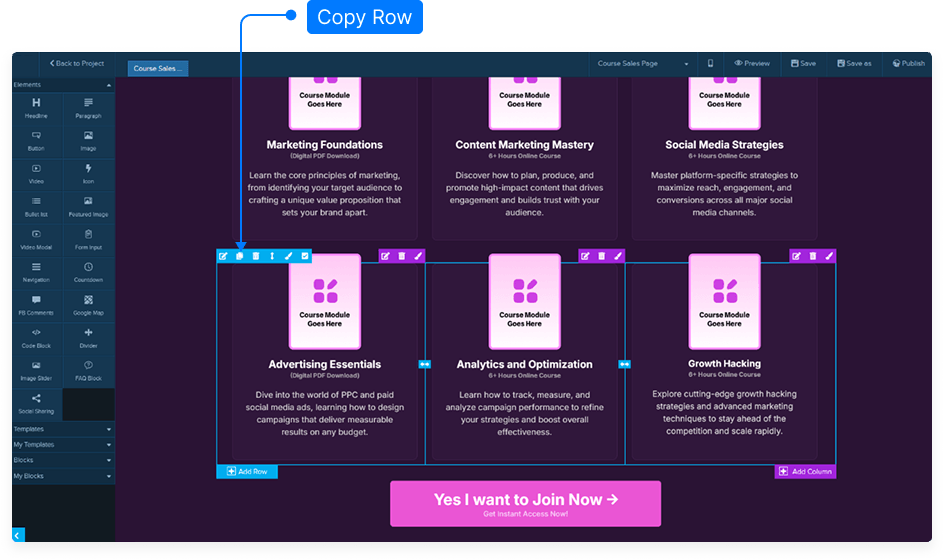
Locate the row you want to duplicate. Rows are typically indicated by a light blue menu bar.
Click the Copy button from the light blue row menu.
The system will instantly recreate that row just beneath the original.
Step 4: Copy a Single Design Element
Hover over the specific design element (e.g., a text block, button, or image) you want to duplicate.
Click the Copy button for that element.
A duplicate of the element will appear directly below the original.

Step 5: Save Your Work
Once you’ve duplicated the necessary sections, rows, or elements, click Save to apply all changes.
This ensures that your copied content is preserved and ready for publishing.
And that’s it! You’ve successfully learned how to copy sections, rows, and individual design elements quickly and efficiently.