Templates help you save time by reusing pre-designed layouts for future projects. Follow the steps below to learn how to create, save, and manage your templates effectively.
Save Your Current Design as a Template
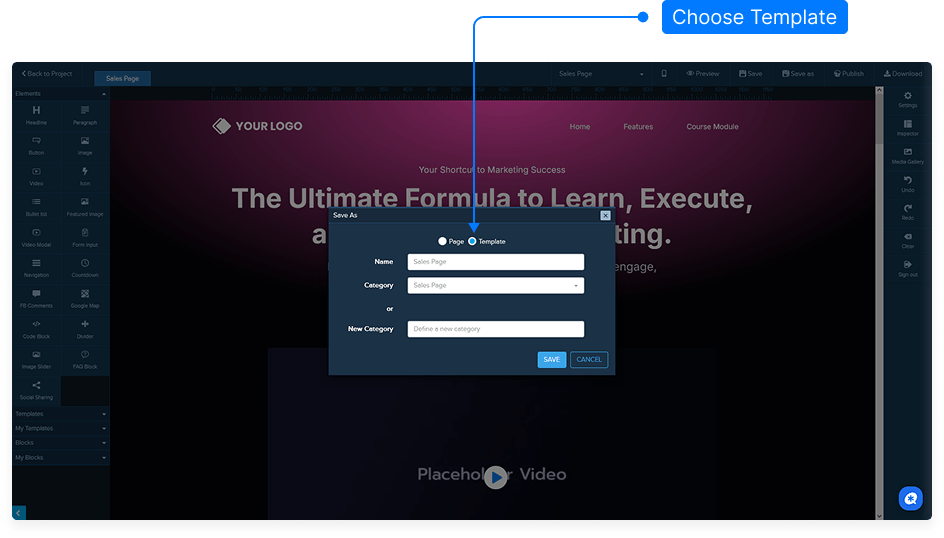
Once you’ve finished creating a layout you’d like to reuse, click Save As in the top right corner, then select Template.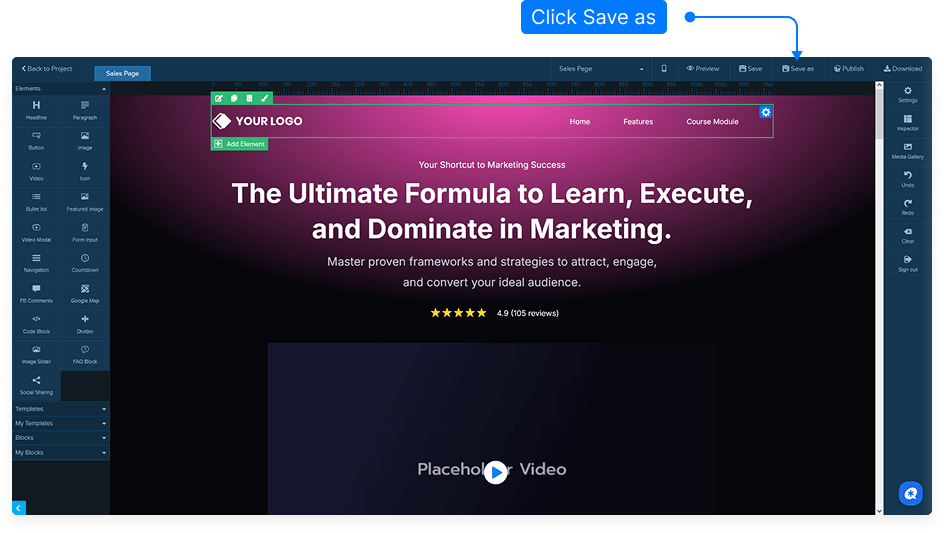
Give your template a name and select a category.
If you don’t have a category yet, you can create a new one.
Click Save to confirm.
Access Your Saved Templates
Return to your main dashboard. Click Assets menu and select User Templates.You’ll now see a list of all your saved templates. Your newly created template will appear here.
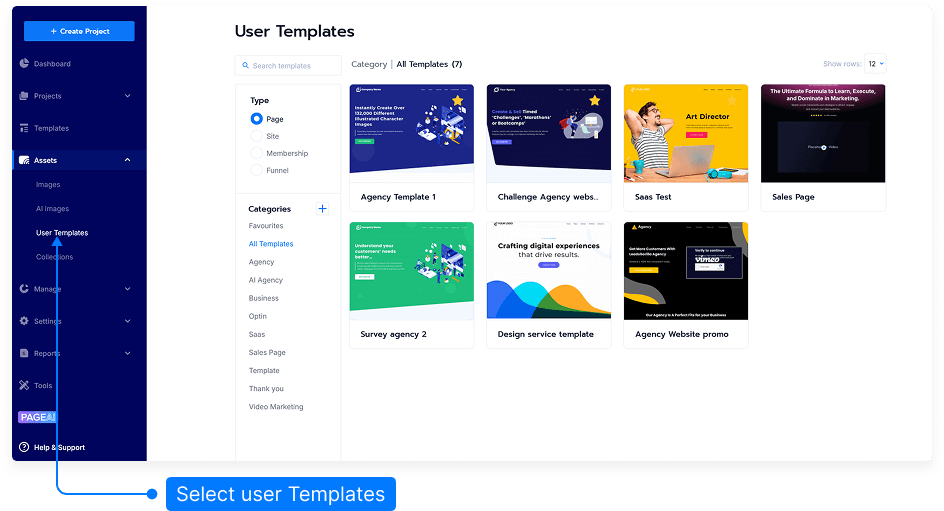
Note: The thumbnail image may take a few minutes to generate after saving.
Available Template Actions:
Preview – Opens a preview of the template in a new tab.
Edit – Loads the template directly in the editor for modification.
Clone – Creates an identical copy of the template.
Delete – Removes the template permanently.
Favorite – Marks the template as a favorite for quick access in the Favorites section.
View by Category
You can view all templates grouped by the categories you’ve defined. This helps you stay organized when managing multiple saved layouts.
That’s it! You’ve learned how to save, organize, and manage templates, making it easy to reuse your favorite designs for future projects.