Managing your design blocks allows you to organize, favorite, preview, clone, and edit them as needed. Follow the steps below to get the most out of your saved blocks.
Log in to your account.
Click Assets menu and click Collections.
You’ll now see a list of your design blocks. From here, you can:
View all blocks.
Sort by favorites.
Sort by category.
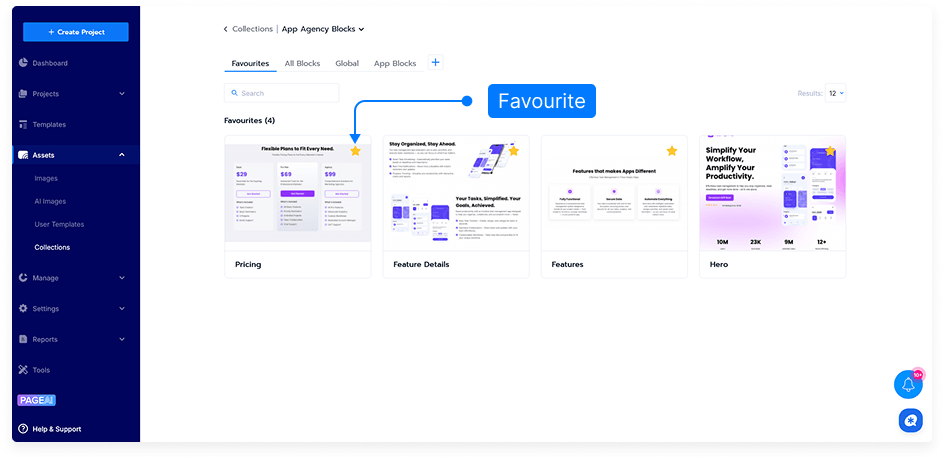
To favorite a block, hover over the star icon and click it. The block will then appear in your favorites list.
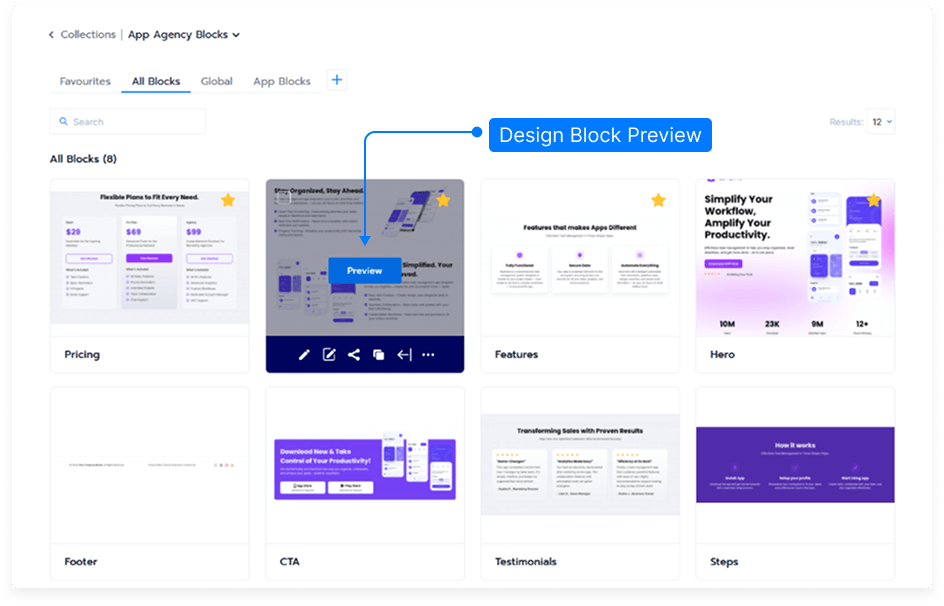
To preview a block, click Preview. A new browser tab will open showing the block.
Adjust how many design blocks are displayed per page using the view settings.
Additional management options include:
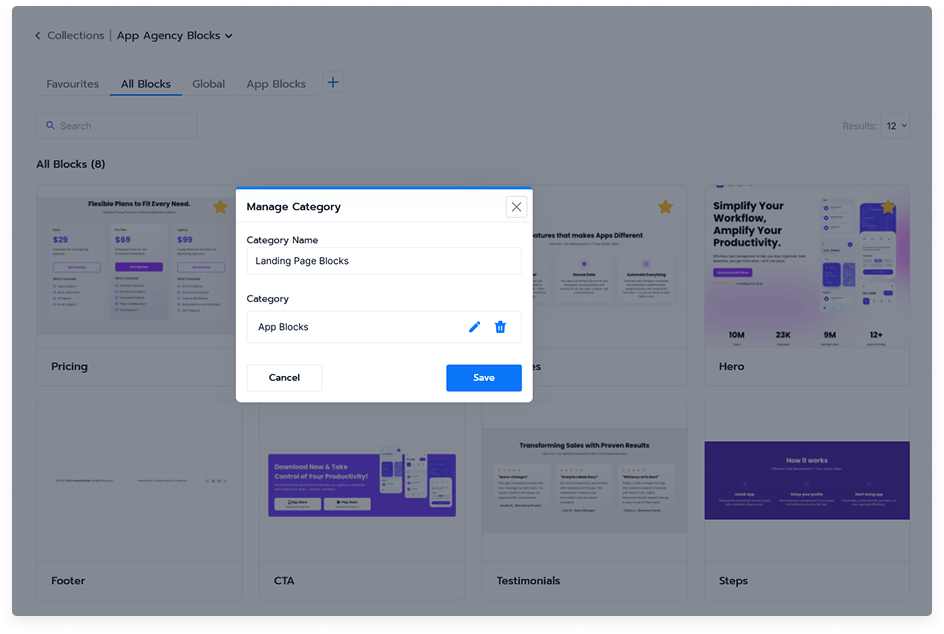
Add a new category to keep blocks organized.
Clone a design block. A copy will appear, and its thumbnail will generate within a few minutes.
Delete a design block you no longer need.
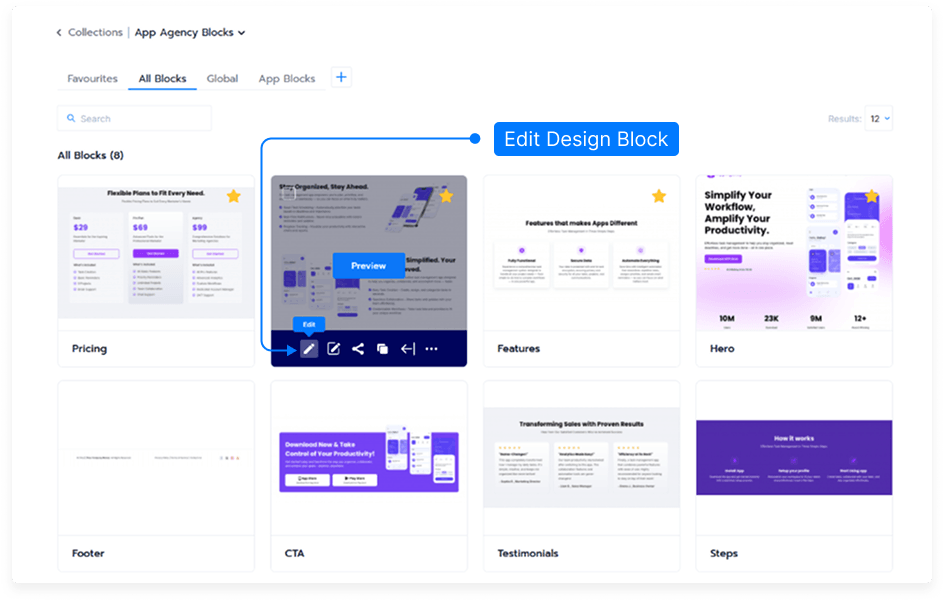
Edit a design block by clicking the edit button, which opens it directly in the editor.
That’s it! You can now manage, organize, and update your design blocks to keep your projects streamlined and efficient.