Creating a new page is quick and simple. You can start from scratch or assign your page to an existing project. Follow the steps below to get started.
From your Project, you have button to create a new page:
Click the Create New Page button directly.
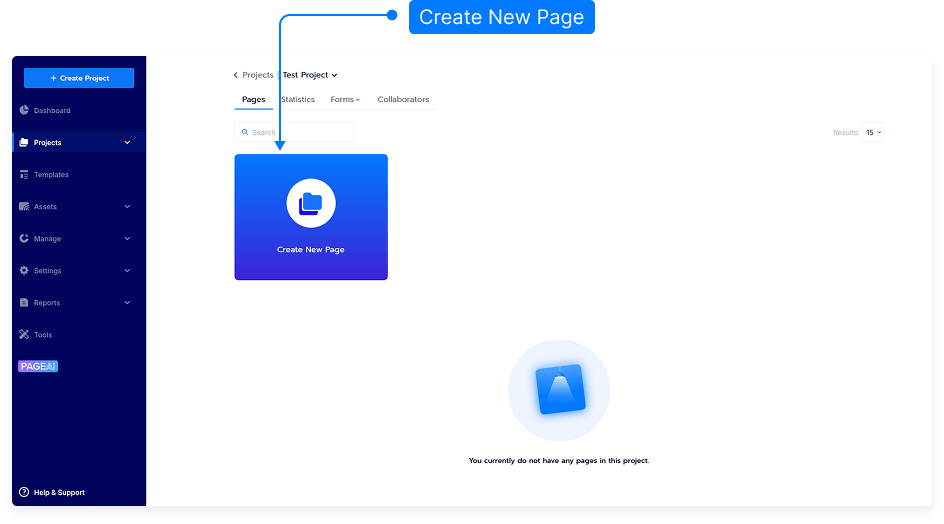
The page editor will load automatically, and a new blank page will appear.
Name your page by entering a title in the page name field.
Choose which project this page belongs to by clicking the downward arrow next to the project selector.
Select an existing project.
Or create a new project for this page.
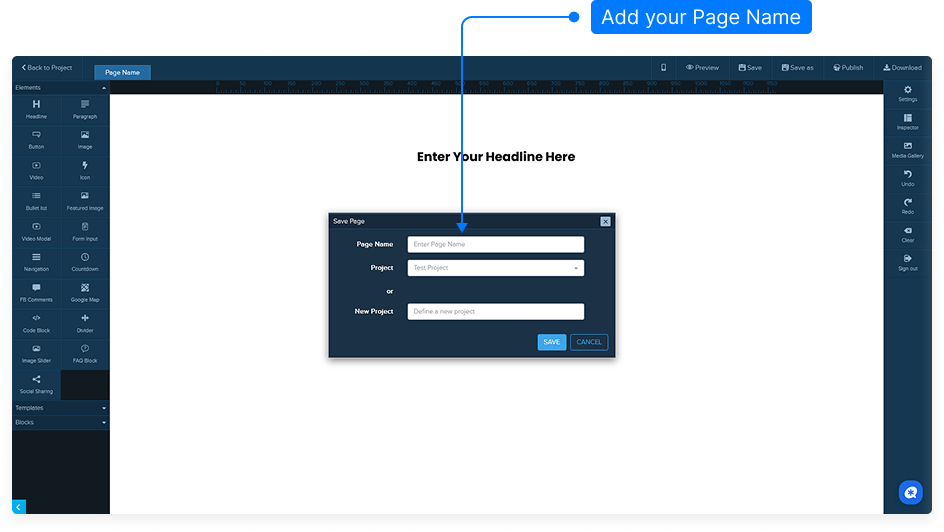
Once finished, click Save to make sure your new page and settings are stored.
Always remember to save your project after making changes.
That’s it! You’ve successfully created a new page and assigned it to a project. You can now start designing and adding content to it.